Fallen Lineage Character Customization and Vanity
Last updated:
Choose your character's appearance during creation, then use Vanity to control visible equipment, hair, and racial features.
During character creation, choose a name and use Appearance to set your body, skin, face, and hair. To change displayed equipment, open Character > Inventory > Vanity and use Equip, Hide, or Remove.
Creation and Vanity Menus
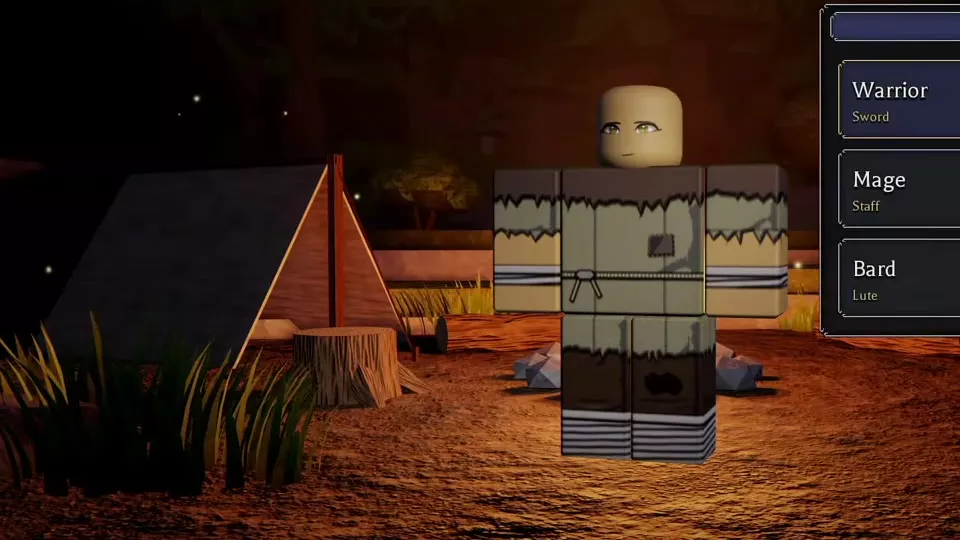
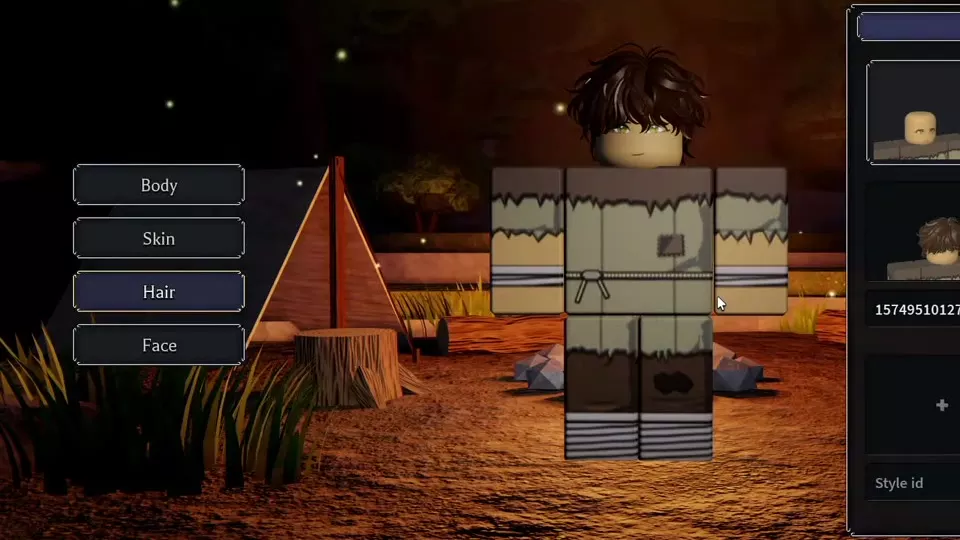
The Name and Appearance stages set your character's starting look. Appearance contains Body, Skin, Hair, and Face panels with a central preview.
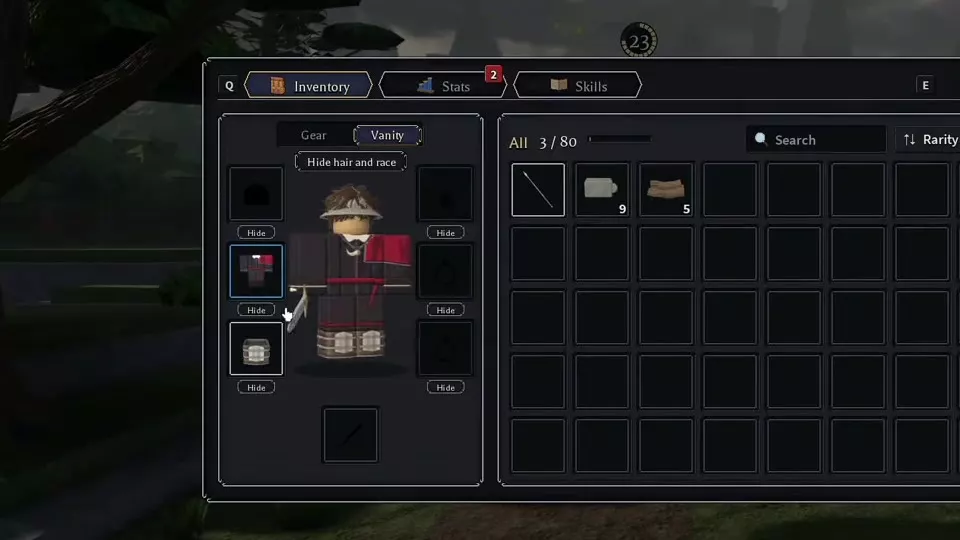
Vanity is in Character > Inventory, beside Gear. It controls displayed equipment parts and has a separate control for hair and racial appearance.
Choose a Name, Body, and Face
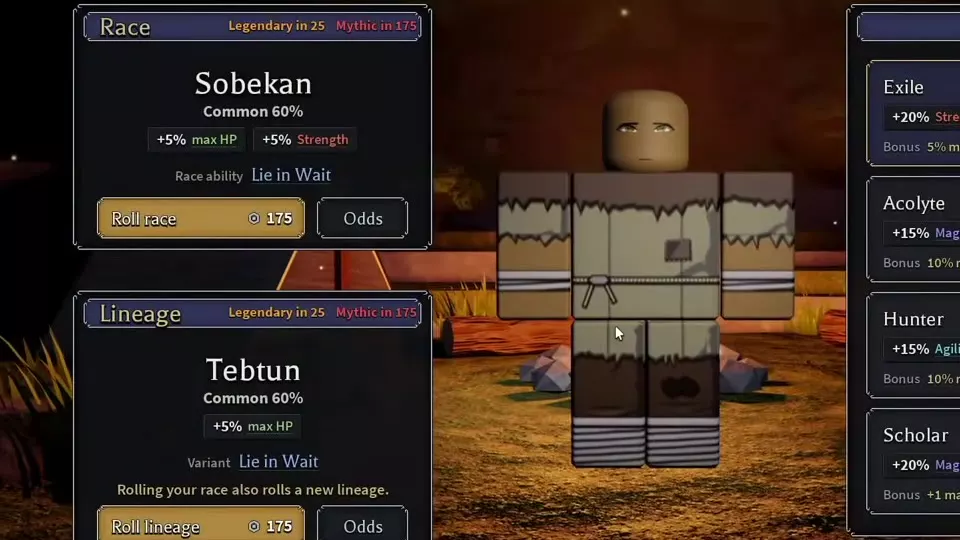
- Open Name during character creation. Scroll through the name list or enter text in Type to filter it, then select a name. The preview displays your chosen first name followed by your current Lineage name; for example, Corin with the Tebtun Lineage becomes Corin Tebtun.
- Open Appearance > Body and choose Type 1 or Type 2. The preview updates to show the different body shape.
- Open Skin and select a color swatch.
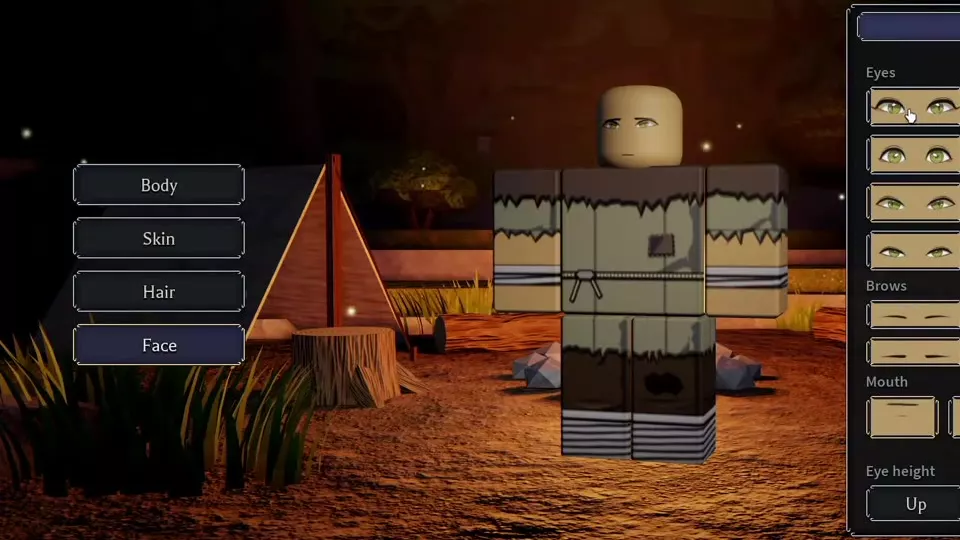
- Open Face and choose styles for Eyes, Brows, and Mouth. Set Eye height to Up, Middle, or Down to adjust the eyes vertically.
- Check the central preview. Use Back and Next to move between creation stages.
Set Hair Styles
Open Appearance > Hair during character creation. The panel has four style slots, each with a plus icon and a Style id field. Enter a hairstyle ID in a field and check the character preview.
For dark, fluffy hair, enter 15,749,510,127. Your selected hair remains on the character when you switch to Face to adjust facial features.
Equip and Hide Vanity Parts
- Open Character > Inventory and switch from Gear to Vanity.
- Select an item in your inventory and choose Equip to place it in an appearance slot. For example, Duelist's Doublet changes the torso to a red-and-black look, while Watchman's Greaves changes the lower-body appearance.
- Use Hide beside an appearance slot to hide that equipment part, including a helmet.
- Toggle Hide hair and race to change the display of your hair and racial features. Toggle it again to restore the previous display.
- To take an item out of an appearance slot, open its actions and select Remove. The item returns to your inventory.
You can open Inventory and its Vanity tab at a Campfire or during route selection.
Character Origins and Equipment
Your selected first name is displayed with your current Lineage. See Races, Lineages, and Rerolls for origin choices and reroll rules.
For equipment slots, requirements, and effects, see Armor and Accessories.